
This page comprises configuration scripts for WSH Panel Mod (foo_uie_wsh_panel_mod), a scriptable UI element for the audio player foobar2000. I use them on my living room computer to display what I’m listening to. Installation instructions are on the bottom of this page.
WSHtpc04—delayed-displays
This panel can be used for fullscreen panels and tiny (horizontal) spaces. It shows albumart or pictures from the audio file’s directory. Progress bar acts as a clickable seekbar, albumart is a huge pause button. In fullscreen layout, double-clicking on the right/left edges moves to next/previous track. In small horizontal layout, contents of tag grid table are displayed one after another in line three of the panel. New since version 0.4: basic theme support and compatible with WSH Panel Mod 1.5 versions.
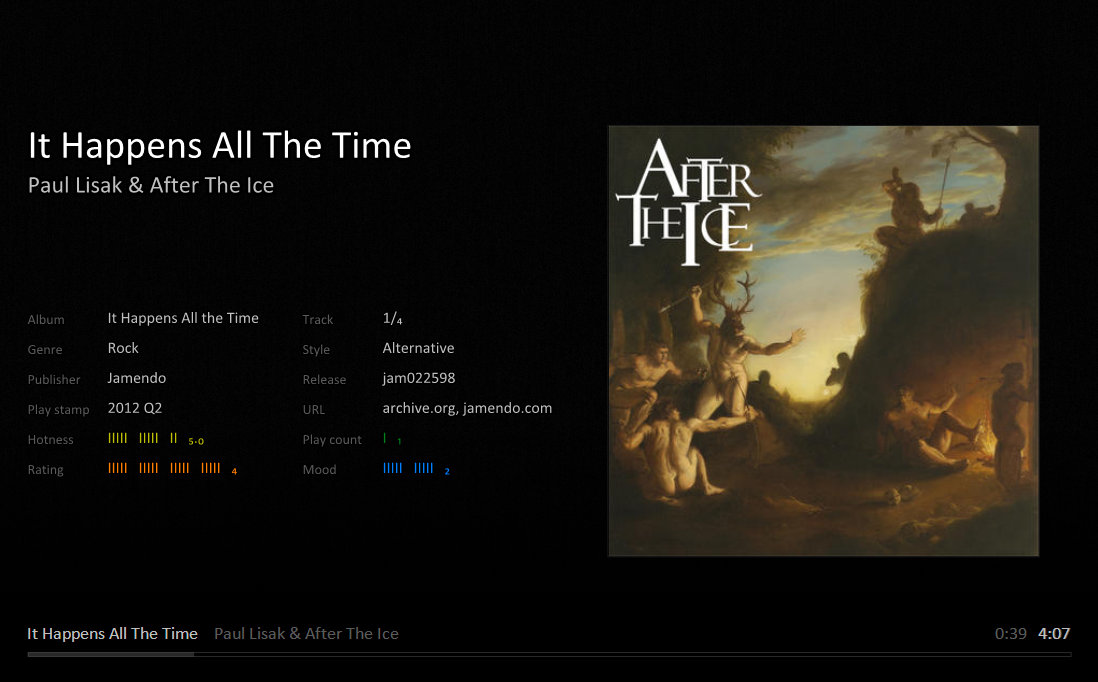

Download
Version: 0.4.1
Date: 2012-07-30
WSHtpc03—copy cat
This configuration is inspired by Windows Media Player. A simple background image behind large album art.
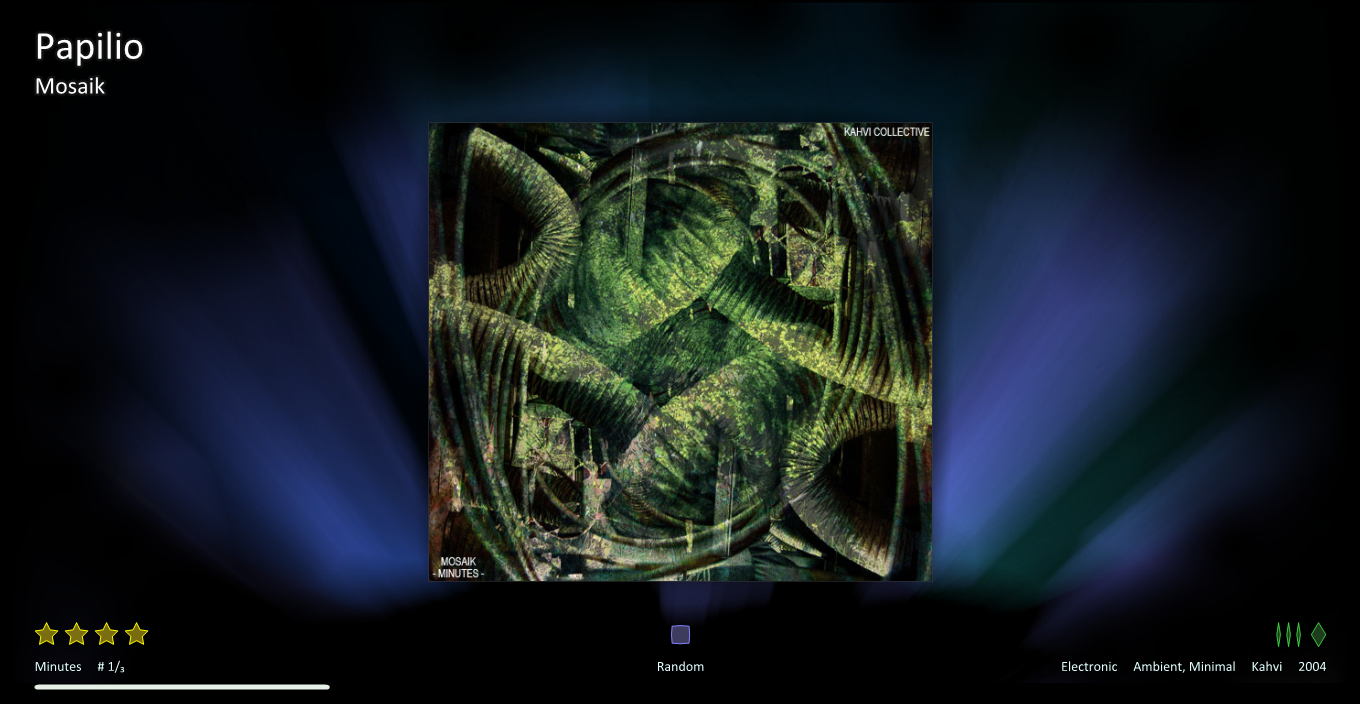
Download
Version: WSHtpc03 v0.5.1
Date: 2010-10-06
WSHtpc02—big background
If you have artist art, take this one.
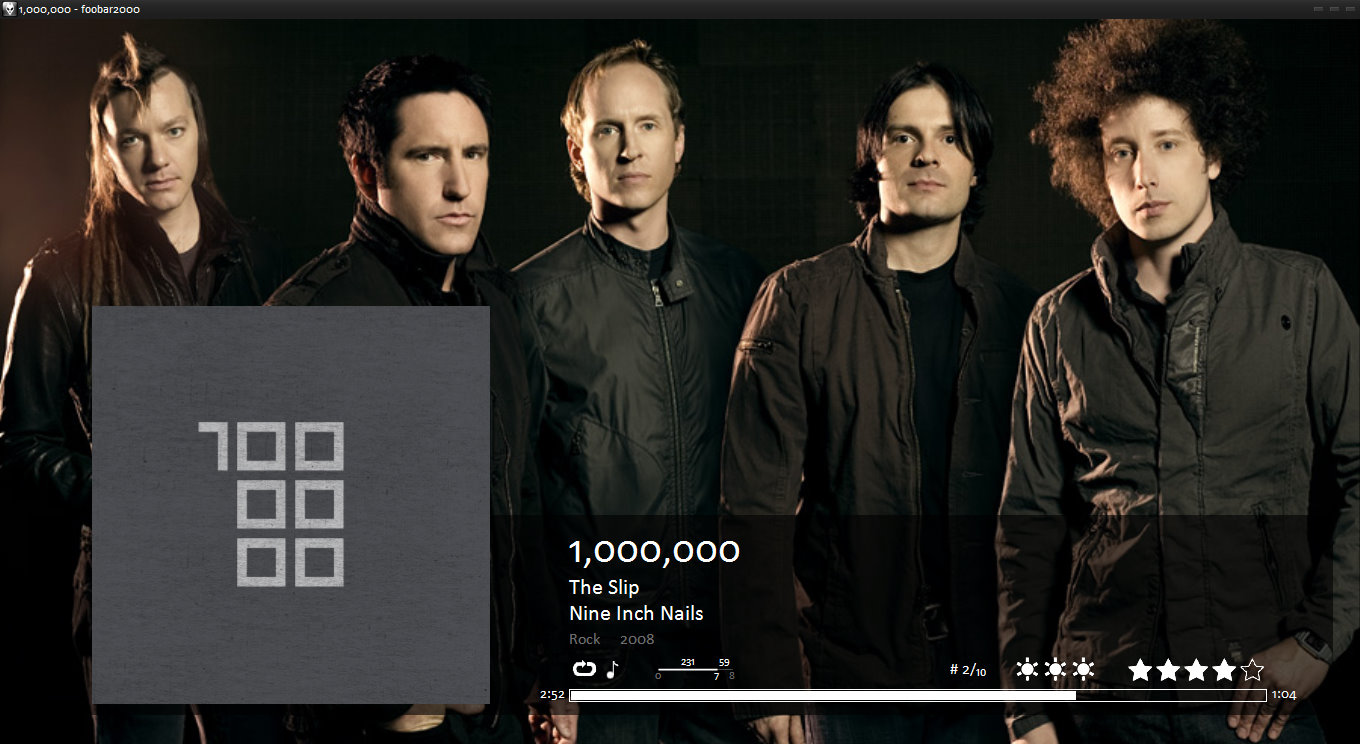
Download
Version: WSHtpc02 v0.3
Date: 2010-10-28
WSHtpc01—average alpha
My learning script, through which I learnt to migrate from good old foo_trackinfo_mod to foo_wsh_panel_mod.
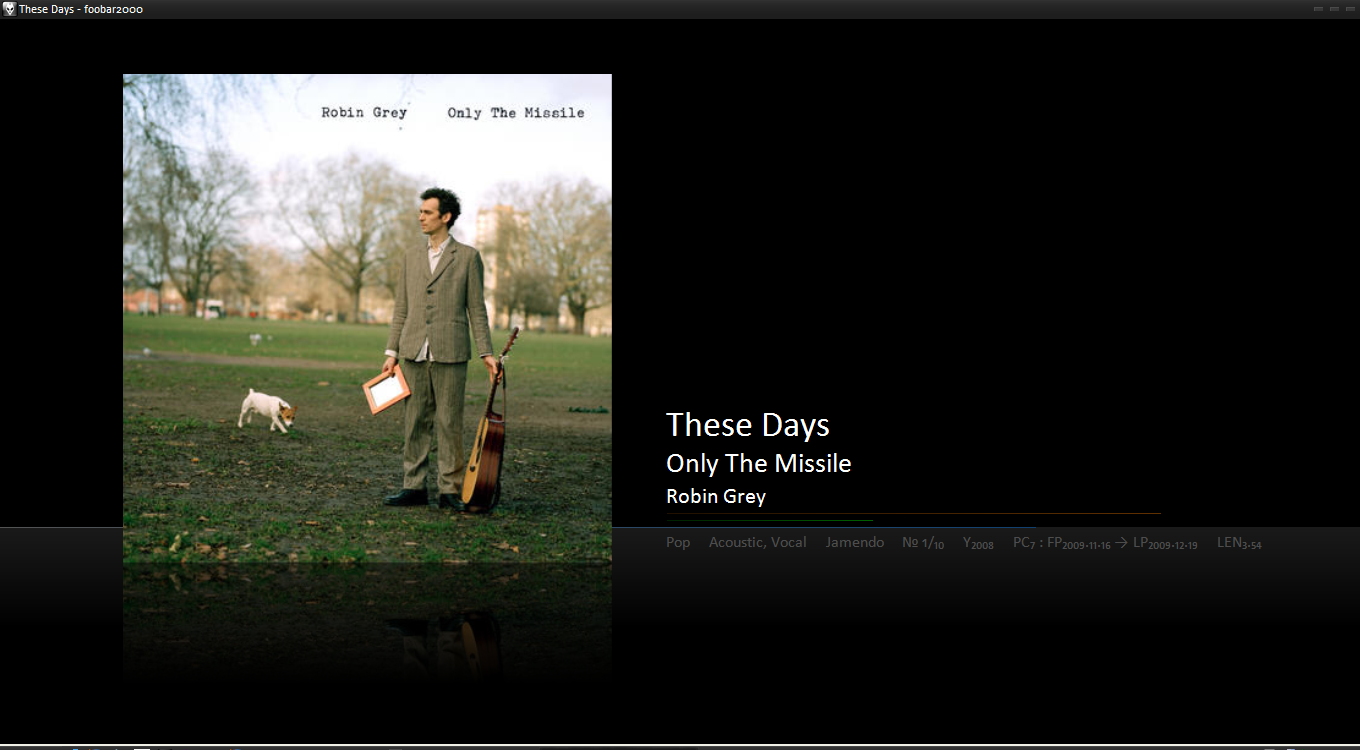
Download
Version: WSHtpc01 v0.3
Date: 2010-04-03
Requirements & Installation
These configurations need foobar2000 installed with the WSH Panel Mod component.
- Copy included image files to %Foobar2000ProfilePath%/images/WSHtpcXX/*.[png|jpg]. (This folder is either located in c:/Users/YourName/Appdata/Roaming/foobar2000 or in the installation directory for portable version.)
- Add a WSH Panel to your configuration. In default user interface, use the Layout Editing Mode. In Columns UI, edit your layout in Preferences.
- Right-click on the empty panel and select “Configure”.
- Copy the contents of the included file to the panel’s configuration window.
- Hit Ok.
That’s it.
Leave a Reply